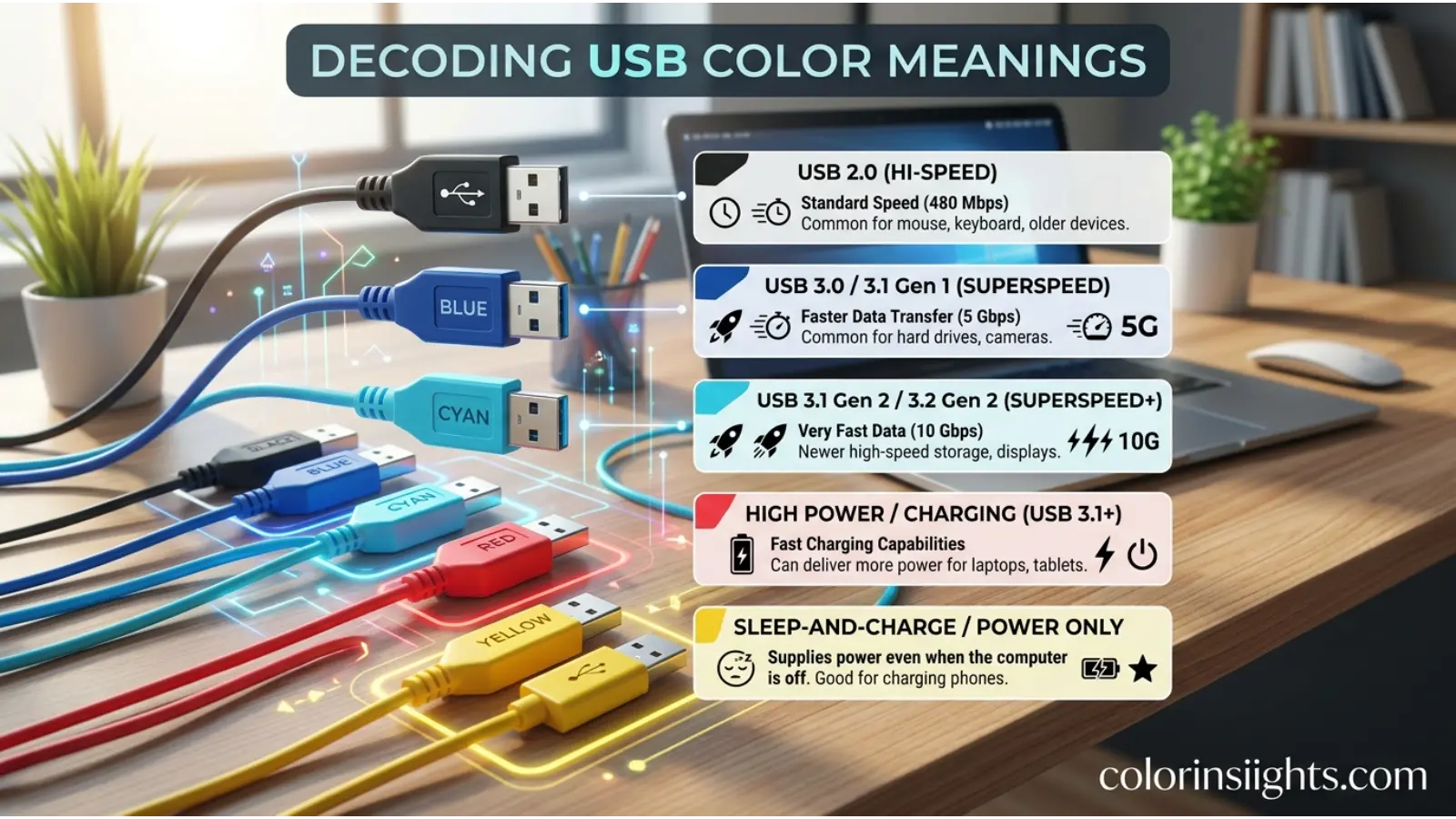
USB color meanings help users quickly identify the purpose, speed, and charging capabilities of different USB ports and connectors. While the USB Implementers Forum (USB-IF) does not officially standardize every port color, many computer manufacturers use common color conventions to distinguish between USB generations and special features.
Understanding these colors can save time when connecting devices, charging smartphones, transferring files, or troubleshooting hardware. However, because some manufacturers use custom color schemes, port color should always be considered a helpful visual guide rather than an absolute technical standard.
Quick Answer:
USB port colors generally indicate different functions. Black usually represents USB 2.0, blue commonly identifies USB 3.x SuperSpeed, teal often indicates USB 3.2 Gen 2, while red, yellow, or orange typically mark always-on charging ports. Some colors vary depending on the manufacturer.
What Do USB Colors Mean?
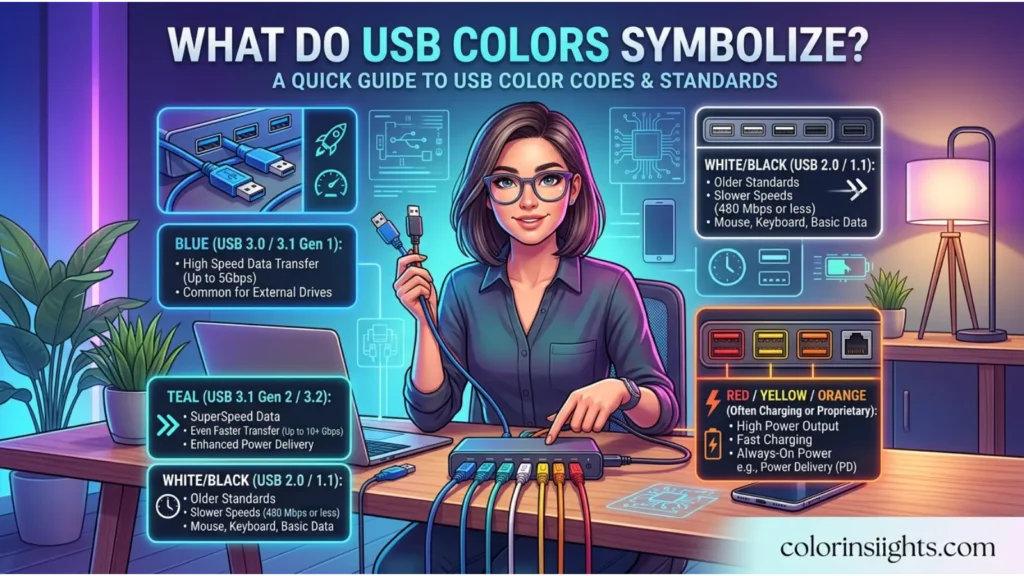
USB port colors serve as quick visual indicators that help users recognize different USB technologies and special features. Although many colors have become common across the industry, manufacturers sometimes assign unique colors for branding or additional functionality.
Below are the most common USB color meanings.
| USB Color | Common Meaning | Typical Use |
|---|---|---|
| Black | USB 2.0 | Standard peripherals, keyboards, mice, printers |
| White | USB 1.x or early USB 2.0 | Legacy devices |
| Blue | USB 3.0 or USB 3.1 Gen 1 (SuperSpeed) | Fast data transfer |
| Teal (Blue-Green) | USB 3.1 Gen 2 or USB 3.2 Gen 2 | Higher-speed storage devices |
| Red | Always-On charging or high-power USB | Charging devices even when the PC is off |
| Yellow | Sleep-and-Charge USB port | Continuous charging capability |
| Orange | Dedicated charging port | Fast charging for mobile devices |
| Purple | High-current charging or manufacturer-specific | Premium laptops and workstations |
Instead of indicating color symbolism, these colors communicate technical capabilities that improve usability and reduce connection errors.
USB Black Port Meaning
Black USB ports are the most recognizable and have traditionally represented USB 2.0.
Features
- Maximum transfer speed of 480 Mbps
- Compatible with nearly all USB devices
- Widely available on older desktops and laptops
- Suitable for peripherals that do not require high bandwidth
Best Uses
- Mouse
- Keyboard
- Printer
- Scanner
- Webcam
- USB headset
Since keyboards and mice exchange relatively small amounts of data, connecting them to a black USB port leaves faster ports available for storage devices.
USB White Port Meaning
White USB ports usually identify USB 1.0 or USB 1.1 on older computers.
Characteristics
- Found mainly on legacy hardware
- Supports low-speed and full-speed USB devices
- Maximum speed up to 12 Mbps
- Rare on modern computers
Typical Devices
- Older keyboards
- Early digital cameras
- Vintage USB accessories
- Legacy external hardware
Today, white USB ports have mostly disappeared from new computers but remain relevant for maintaining compatibility with older equipment.
USB Blue Port Meaning
Blue is the industry’s most widely recognized color for USB 3.0, also marketed as USB 3.1 Gen 1 SuperSpeed.
Key Features
- Maximum theoretical speed of 5 Gbps
- Backward compatible with USB 2.0 devices
- Supports faster external storage
- Improved power delivery compared to USB 2.0
Ideal Uses
- External SSDs
- Portable hard drives
- USB flash drives
- HD webcams
- Video capture devices
- Docking stations
If you frequently transfer large files, choosing a blue USB port can significantly reduce transfer times compared to a black USB 2.0 port.
USB Teal Port Meaning
Teal (sometimes called turquoise or blue-green) commonly indicates USB 3.1 Gen 2 or USB 3.2 Gen 2, depending on the manufacturer.
Main Benefits
- Data speeds up to 10 Gbps
- Enhanced performance for professional storage devices
- Better suited for high-bandwidth applications
- Supports demanding peripherals
Common Applications
- External NVMe SSDs
- Professional cameras
- 4K video editing drives
- High-speed backup devices
- Enterprise storage solutions
Although teal ports are becoming more common on premium laptops and desktops, not every manufacturer uses this color consistently.
USB Red Port Meaning
A red USB port usually indicates a high-power or Always-On USB port rather than a specific USB version. Many laptop and motherboard manufacturers use red ports to show that the port can continue supplying power even when the computer is in sleep mode, hibernation, or turned off (if enabled in the BIOS or firmware).
Features
- Often supports Always-On USB charging
- May provide higher charging current than standard USB ports
- Can be USB 2.0, USB 3.0, or USB 3.2 depending on the device
- Designed for both charging and data transfer in many systems
Best Uses
- Charging smartphones and tablets
- Powering wireless headphones
- Charging smartwatches
- Keeping Bluetooth accessories powered
- Connecting portable devices that need continuous power
Example:
Plugging your phone into a red USB port may allow it to charge overnight even after you shut down your laptop.
USB Yellow Port Meaning
Yellow USB ports commonly represent Sleep-and-Charge functionality. Like red ports, they can deliver power when the computer is not fully powered on.
Characteristics
- Supports charging while the PC sleeps or hibernates
- May offer increased power output
- Often configurable through BIOS or manufacturer software
- Common on many business laptops
Typical Devices
- Smartphones
- Fitness trackers
- Wireless earbuds
- Bluetooth speakers
- Power banks
Keep in mind that the exact charging behavior depends on your computer manufacturer’s implementation.
USB Orange Port Meaning
Orange USB ports are generally dedicated to high-current charging. While there is no universal standard, manufacturers often reserve orange ports for devices that require faster charging than standard USB ports provide.
Advantages
- Faster charging for compatible devices
- Reliable power delivery
- Convenient for mobile electronics
- Often available even when the computer is idle
Common Uses
- Mobile phones
- Tablets
- Wireless gaming controllers
- Portable batteries
- USB-powered gadgets
An orange USB port is an excellent choice when your priority is charging rather than transferring data.
USB Purple Port Meaning
Purple USB ports are less common and are usually manufacturer-specific. Some motherboard makers use purple ports to indicate enhanced charging capabilities, premium USB controllers, or specialized features.
Possible Functions
- High-current charging
- Faster power delivery
- Premium motherboard features
- Special firmware-controlled USB functions
Because purple ports do not follow an industry-wide standard, always refer to your computer or motherboard documentation to confirm their purpose.
Why USB Port Colors Are Not Fully Standardized
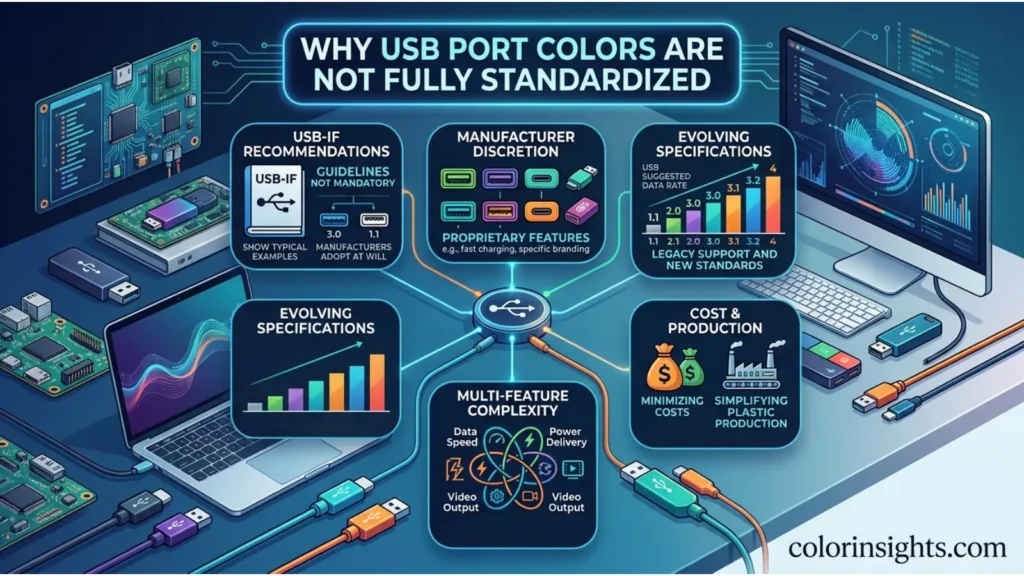
Many users assume every USB color has an official industry definition, but that is not entirely true.
The USB Implementers Forum (USB-IF) defines USB specifications such as transfer speeds, connectors, and power delivery standards. However, it does not require manufacturers to use specific colors for every USB port.
As a result:
- The same color may represent different functions on different devices.
- Some manufacturers use colors for branding rather than technical identification.
- Labels such as SS (SuperSpeed), 10, 20, USB 3.2, or USB4 provide more reliable information than color alone.
For the most accurate identification, check your device manual or the symbols printed next to the USB port.
Tips for Identifying USB Ports
If you’re unsure what a USB port supports, use these practical tips:
- Look for printed symbols. Labels like SS, 10, 20, or a battery icon often indicate speed or charging capability.
- Check the connector color. It provides a quick clue but is not always definitive.
- Read your computer’s specifications. Manufacturers list supported USB versions and features.
- Use Device Manager or System Information. Your operating system can identify USB controllers and supported standards.
- Consult the user manual. It offers the most reliable explanation of each port’s function.
These steps are especially helpful when setting up external SSDs, docking stations, or other high-performance USB devices.
Common Misconceptions About USB Color Meanings
Several myths surround USB port colors. Understanding the facts can help you choose the right port for your devices.
Myth: Blue ports are always the fastest.
Reality: While blue usually indicates USB 3.0 or USB 3.1 Gen 1, newer ports with higher speeds may use teal, black, or even no color at all.
Myth: Red USB ports only charge devices.
Reality: Many red ports support both charging and data transfer.
Myth: Every manufacturer follows the same color scheme.
Reality: Manufacturers often use their own color conventions for specific features.
Myth: Color alone identifies USB generation.
Reality: Labels, specifications, and documentation are more reliable than color when determining USB capabilities.
Understanding these distinctions can prevent confusion and help you make the most of your computer’s USB ports.
FAQs
What do USB colors mean?
USB colors provide a quick visual indication of a port’s typical function, speed, or charging capability. For example, black usually represents USB 2.0, blue commonly indicates USB 3.0 or USB 3.1 Gen 1, while red, yellow, and orange often identify ports designed for enhanced or always-on charging. Because manufacturers may use different color schemes, always verify the specifications in your device manual.
What does a black USB port mean?
A black USB port generally identifies a USB 2.0 connection with a maximum theoretical data transfer speed of 480 Mbps. It is ideal for low-bandwidth peripherals such as keyboards, mice, printers, and scanners.
What does a blue USB port mean?
A blue USB port typically represents USB 3.0 or USB 3.1 Gen 1 (SuperSpeed). It supports transfer speeds of up to 5 Gbps, making it suitable for external hard drives, SSDs, flash drives, and other high-speed storage devices.
What does a teal USB port mean?
A teal USB port often indicates USB 3.1 Gen 2 or USB 3.2 Gen 2, offering theoretical speeds of up to 10 Gbps. It is commonly found on newer laptops, desktops, and motherboards designed for faster data transfers.
Why are some USB ports red, yellow, or orange?
These colors usually indicate high-power charging features rather than a specific USB generation. They often support Always-On or Sleep-and-Charge functionality, allowing compatible devices to charge even when the computer is sleeping or turned off, depending on the manufacturer’s design.
Are USB port colors standardized?
No. While some color conventions have become widely recognized, the USB Implementers Forum (USB-IF) does not require manufacturers to use specific colors for USB ports. As a result, colors can vary between brands and product lines.
Can I plug any USB device into any colored USB port?
In most cases, yes. USB technology is designed to be backward compatible, so newer ports usually work with older USB devices. However, using a faster USB port allows compatible devices to achieve higher transfer speeds and, in some cases, improved charging performance.
Which USB port should I use for an external SSD?
For the best performance, connect an external SSD to a blue, teal, or another high-speed USB port labeled SuperSpeed (SS), 10 Gbps, or 20 Gbps. Avoid using a black USB 2.0 port if maximum transfer speed is important.
What is the difference between USB color and USB version?
USB color is simply a visual aid used by many manufacturers, while the USB version defines the actual technical specifications, including transfer speed, power delivery, and supported features. The USB version—not the color—determines performance.
How can I identify my USB port if it has no color?
Many modern computers use black or neutral-colored ports regardless of their capabilities. Check for printed symbols such as SS, 10, 20, USB4, or Thunderbolt, review your computer’s documentation, or inspect the specifications in your operating system to determine the port’s features.
Conclusion
USB color meanings make it easier to recognize the likely purpose of a USB port at a glance, whether it is intended for standard peripherals, high-speed data transfers, or enhanced charging.
Although colors such as black, blue, teal, red, yellow, orange, and purple have become common indicators, they are industry conventions rather than universal standards. Manufacturers may assign different colors to suit their own hardware designs or branding.
For the most accurate identification, rely on the USB version, printed symbols, and your device’s documentation in addition to the port color. Understanding these visual cues helps you connect devices more efficiently, achieve faster transfer speeds, and take advantage of charging features without unnecessary trial and error.